Navigation
Navigating Reservium is designed to be intuitive and fast. This guide breaks down the main interface components you'll interact with on a desktop browser.
Top Navigation Bar
The header is your gateway to all available services. Use it to quickly switch between different areas or rooms.

Calendar View
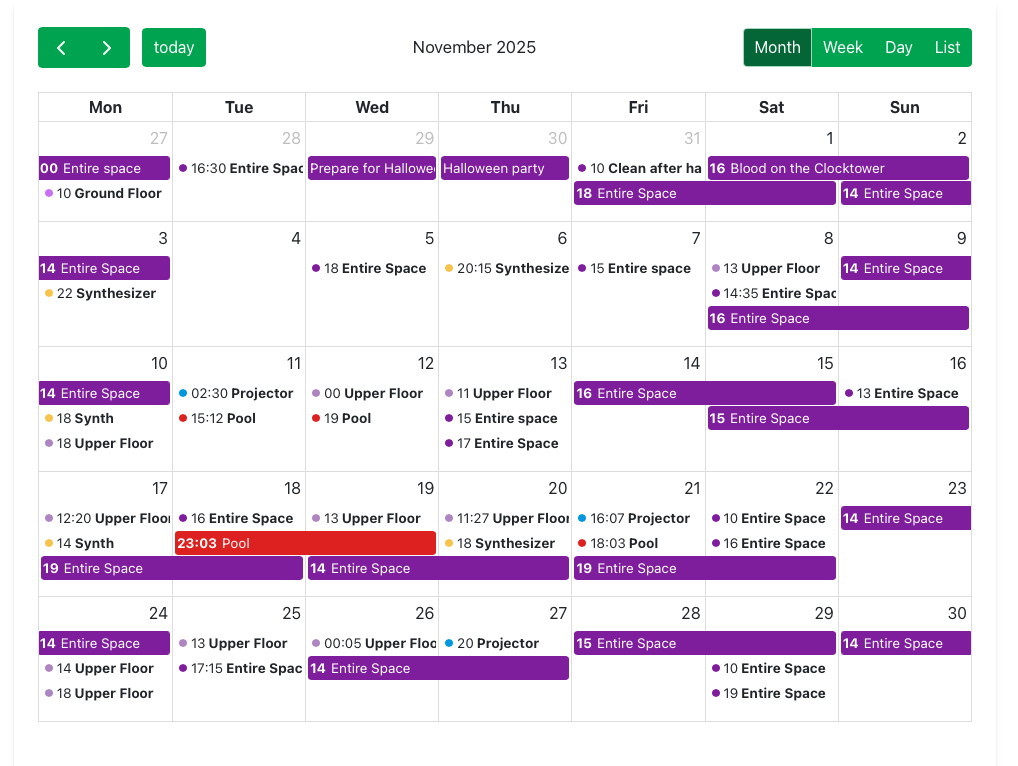
Once you select a service, the calendar becomes the central part of your experience.
-
Select a Service: Clicking a service name loads its specific calendar, displaying:
- Reserved slots: Times that are already taken.
- Available slots: Times you can book.
- Types: Visual indicators for different areas (e.g., Entire Space vs. Pool).
-
Toggle Views: Customize how you see availability:
- Day
- Week
- Month
- List
-
Inspect Details: Hover over or click any existing reservation to see its details.
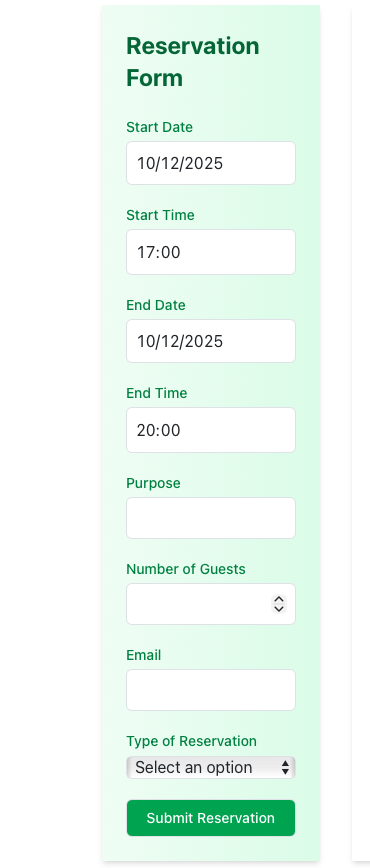
Reservation Form
Located on the left side panel, this form is your primary tool for creating bookings. It stays pinned so you can reference the calendar while filling it out.
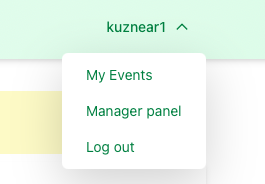
User Menu
In the top-right corner, click your name to manage your account:
- My Events: Access your dashboard and reservation history.
- Logout: Securely exit your session.
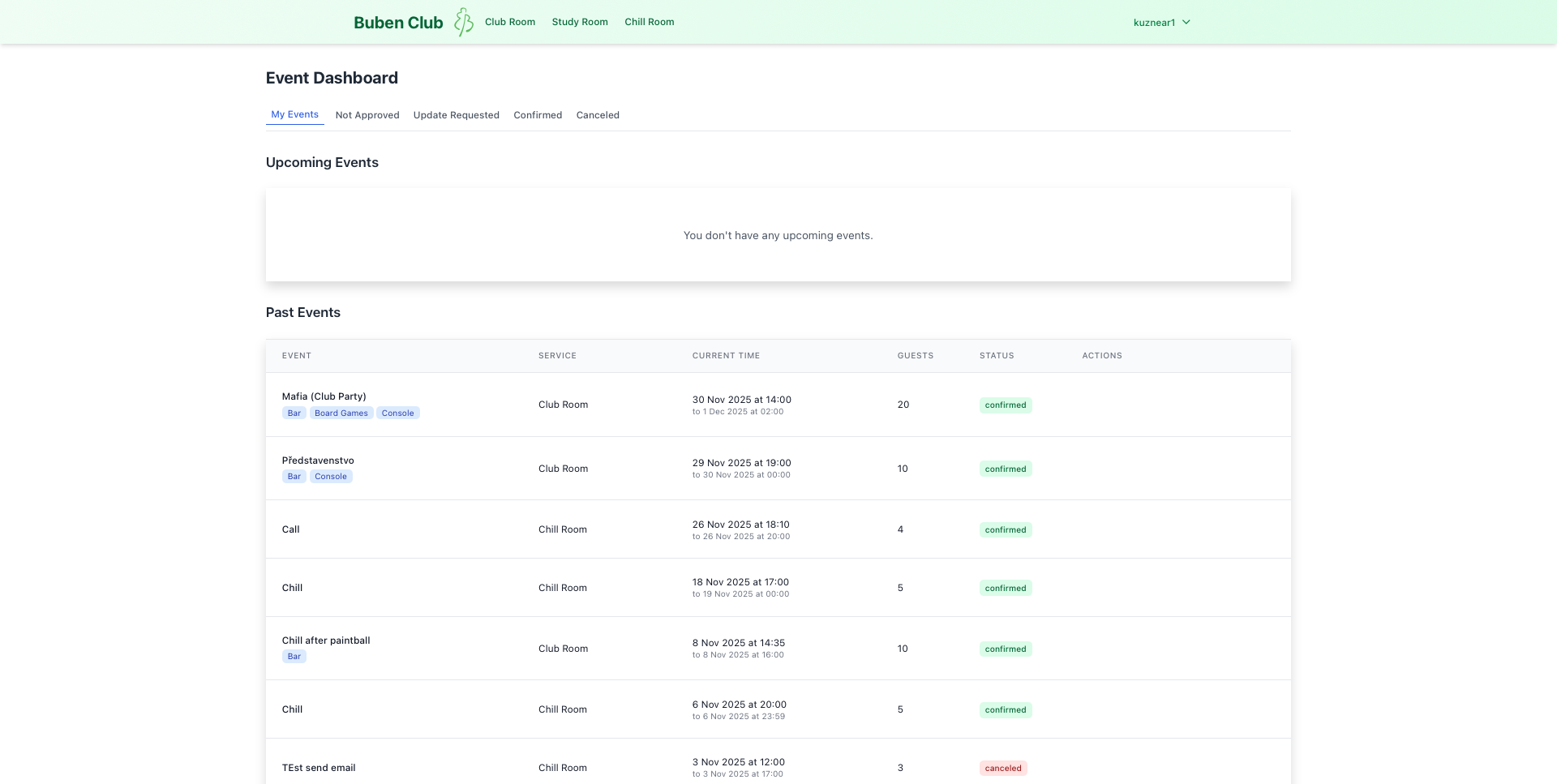
Dashboard Quick View
Inside My Events, you'll find a summary of your activity:
- Current & Upcoming: Track what's happening now or soon.
- Past Reservations: A historical record of your bookings.
Footer
The footer provides quick links to essential resources and support information at the bottom of every page.
