Create Reservation
Creating a reservation in Reservium is a straightforward process. This guide will walk you through the reservation form, the impact of reservation types, and how to handle validations and approvals.
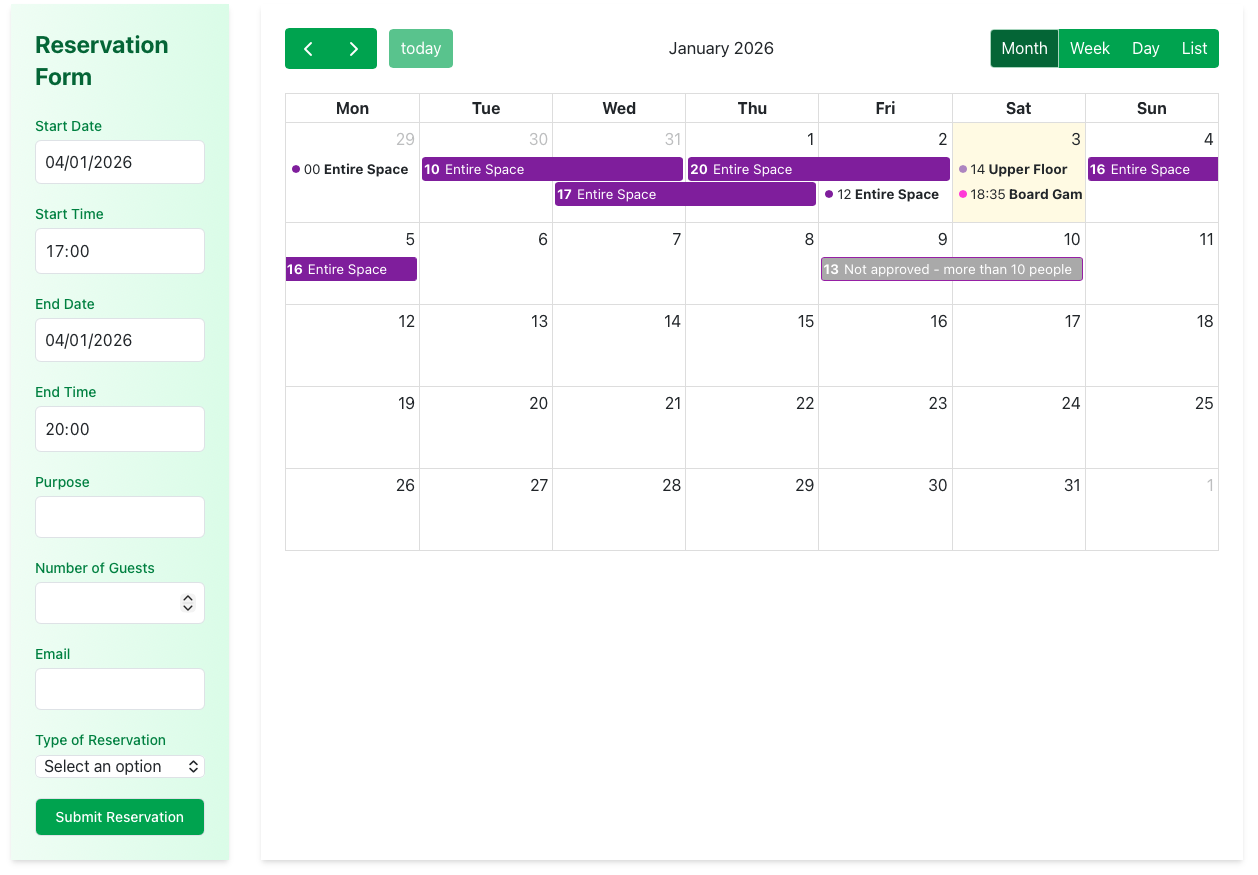
Reservation Form Overview
The reservation form is conveniently located on the left side of the page, allowing you to quickly enter your details while keeping the calendar in view.
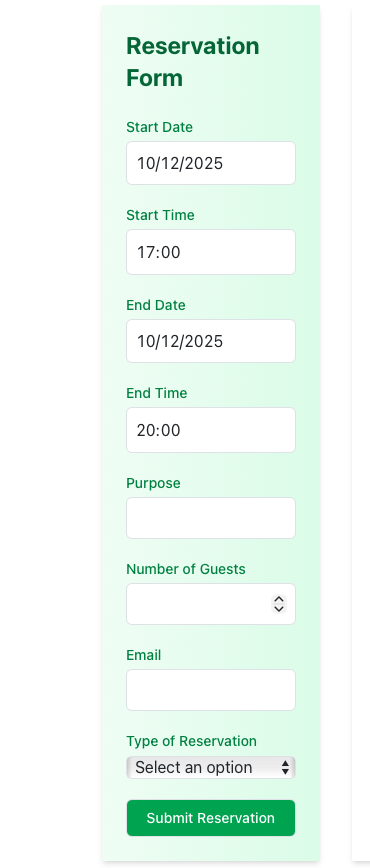
Required Information
To ensure a smooth booking, you must provide the following:
- Start & End Time – Specify the exact duration of your reservation.
- Purpose – Briefly describe why you are reserving the space.
- Guests – The total number of participants.
- Email – Your contact address for confirmation and updates.
- Type – Select the specific area or floor you wish to book.
- Additional Services – Select any extras like equipment or catering (if available).
Reservation Types and Rules
Services can offer different reservation types, which allow for flexible booking of the same space. Common types include:
- Entire Space
- Upper Floor
- Specific Area
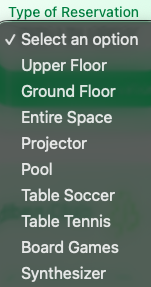
Rules vary by type
Each reservation type may have unique constraints:
- Participant Limits: Minimum/maximum people allowed.
- Time Windows: Specific hours when the type is available.
- Lead Time: How far in advance you must book.
- Approval: Whether a manager needs to manually confirm the booking.
Optional Mini-Services
Enhance your reservation by selecting additional mini-services. These are tailored to the service and reservation type you've chosen.
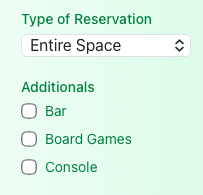
Examples of mini-services include:
- Gaming Consoles or VR equipment.
- Board Games collection access.
- Extra Access Permissions for restricted areas.
Info
This section only appears if the selected reservation type supports additional services.
Validation and Error Messages
Upon submission, Reservium automatically validates your request against real-time availability and service rules.
Common Validation Errors
If a conflict is detected, you will see a warning message explaining the issue. You can then adjust your request and try again.

| Error Type | Description |
|---|---|
| Availability | The requested time slot is already fully or partially booked. |
| Capacity | The number of guests exceeds the limit for the selected type. |
| Timing | The reservation falls outside of allowed operating hours. |
| Permissions | You do not have the required role or membership level. |
Reservations Requiring Approval
In some scenarios, your reservation might not be confirmed immediately. This usually happens for high-demand periods or large-scale events.
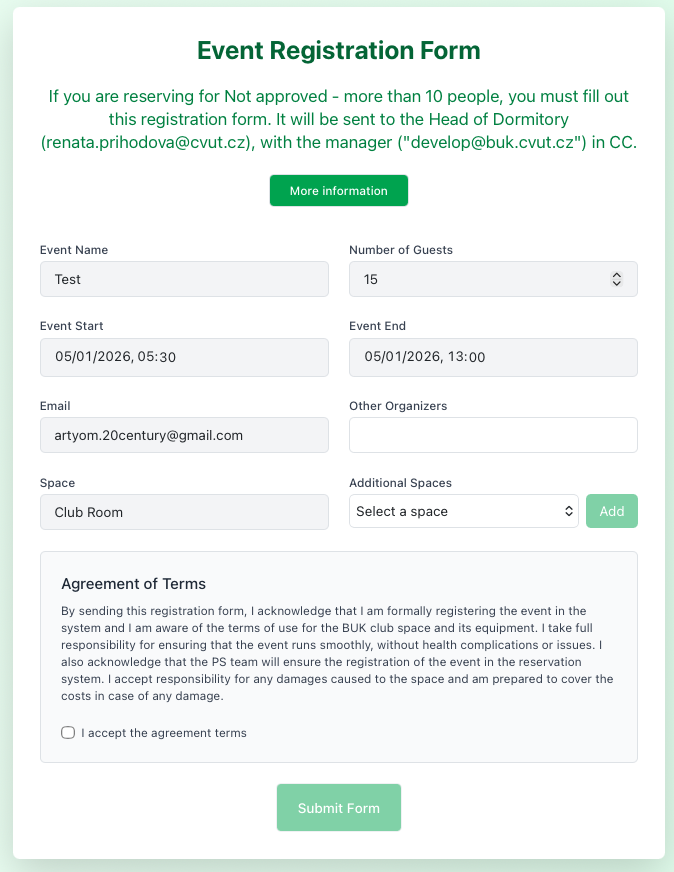
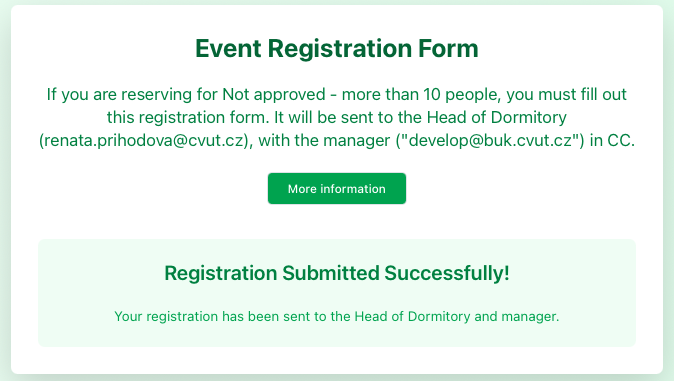
The Approval Flow
- Submit: Create your reservation as usual.
- Pending: The status will show as "Not approved".
- Review: A manager receives a notification to review your request.
- Update: You will receive an email once the manager approves or declines the request.
Successful Reservation
Once all checks pass (and approval is granted if necessary), your reservation is finalized.
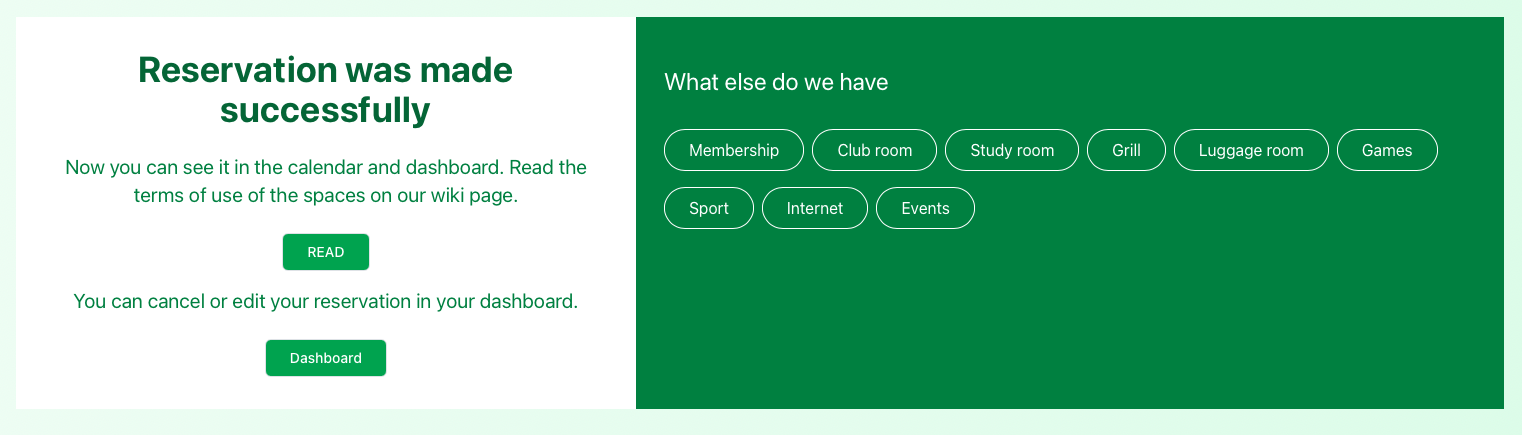
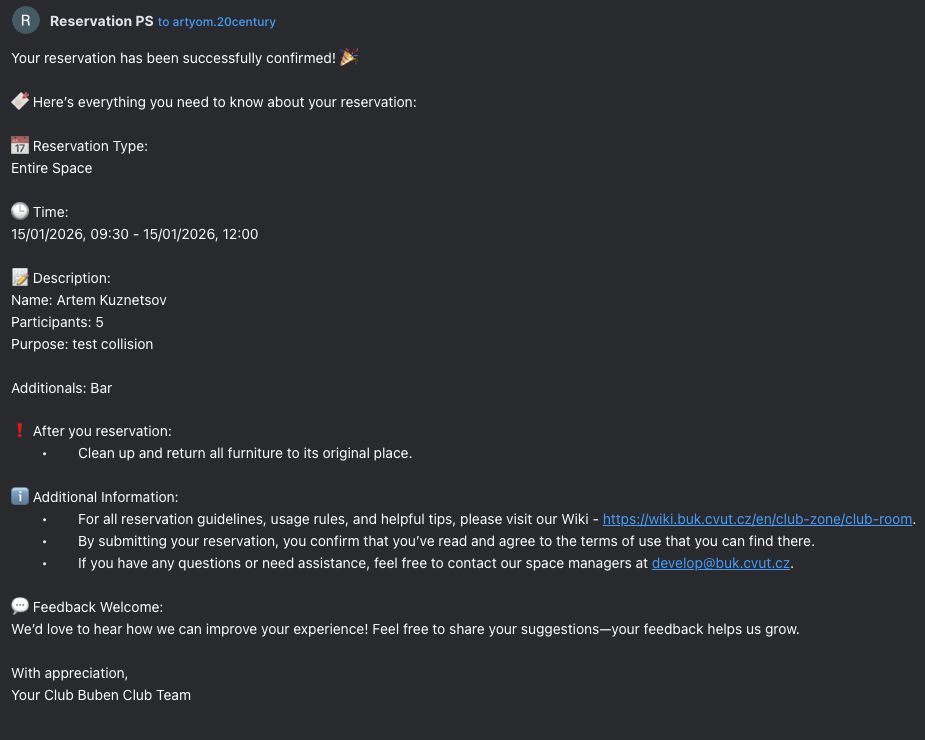
Confirmation Email
You will receive a detailed email containing:
- Date and Time
- Service and Type
- Selected Add-ons
- Management Links
What's Next?
After your reservation is confirmed, you can:
- View it in your Dashboard.
- Track status updates in My Events.
- Prepare for your visit!