Manage Calendars
Calendars are the heartbeat of Reservium. They define exactly when and how a service can be reserved. Each calendar controls the specific availability rules, participant limits, and collision behavior for a given space.
Calendars Overview
The Calendars section provides a bird's-eye view of all booking tracks associated with your service.
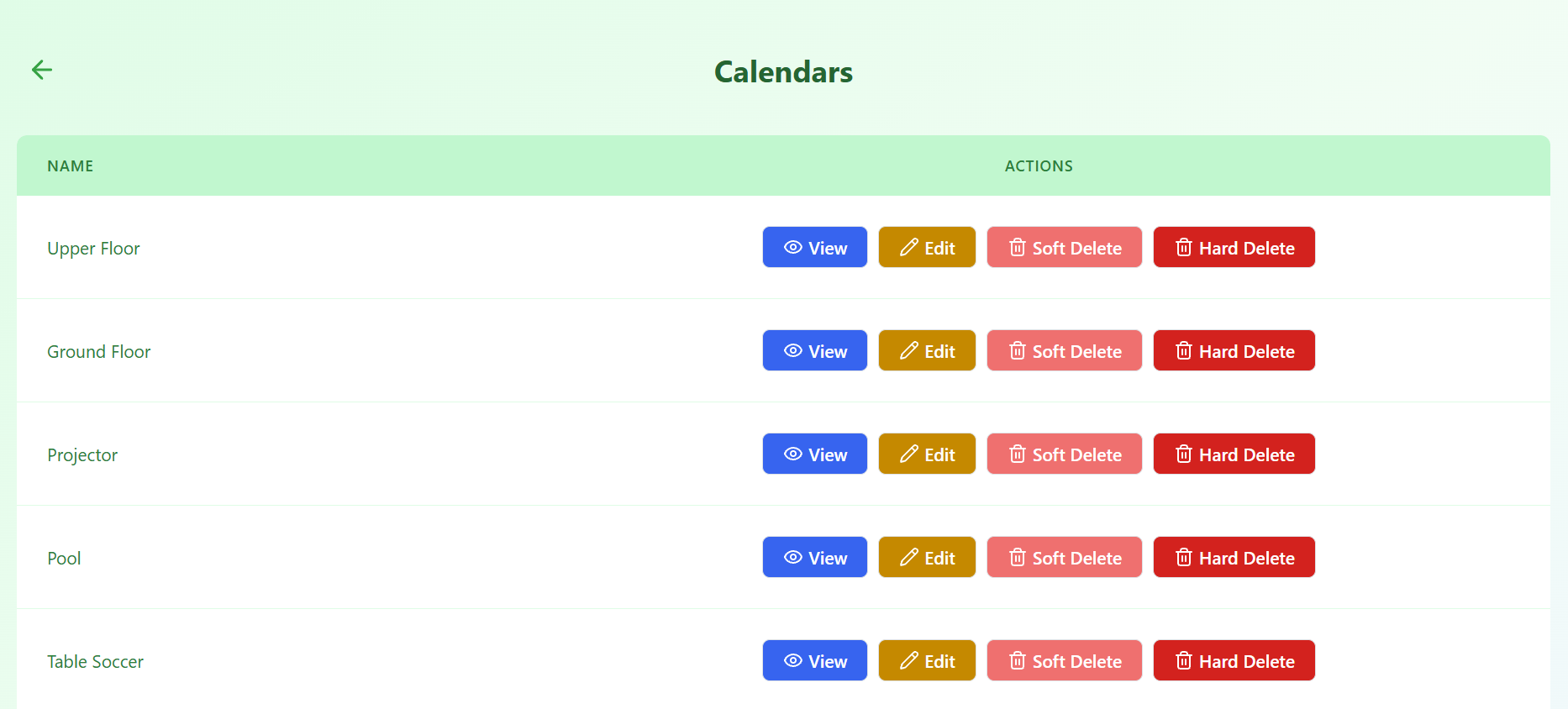
A single service (like a "Club Room") might have multiple calendars for:
- Different Areas: Upper floor vs. Ground floor.
- Reservation Types: Entire space vs. Single desk.
- Specific Rules: Different hours or limits for the same physical room.
Available Actions
Manage your calendars using the actions column in the list view.
View Details
Click View to inspect the internal logic of a calendar. This is where you verify if the rules are working as intended.
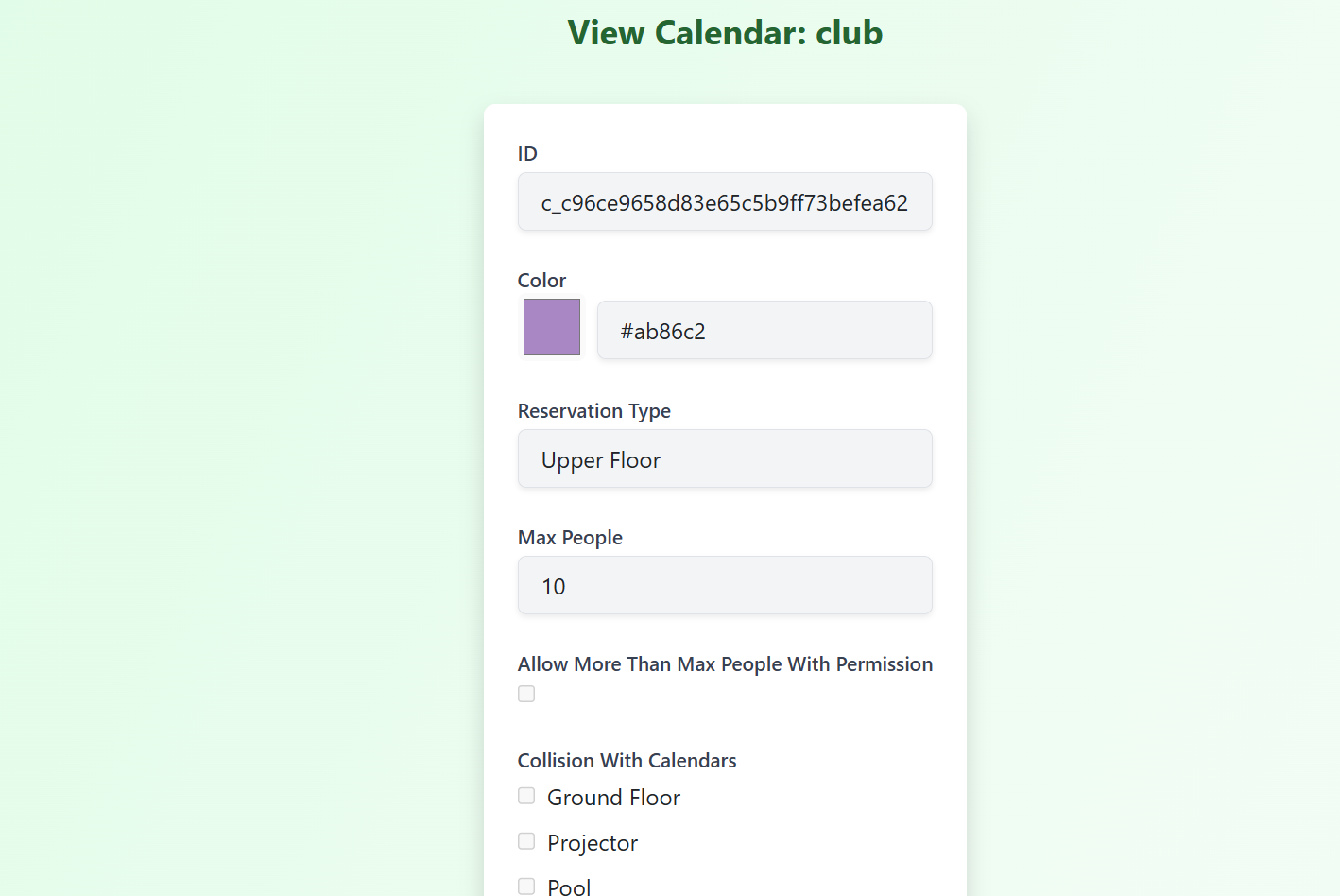
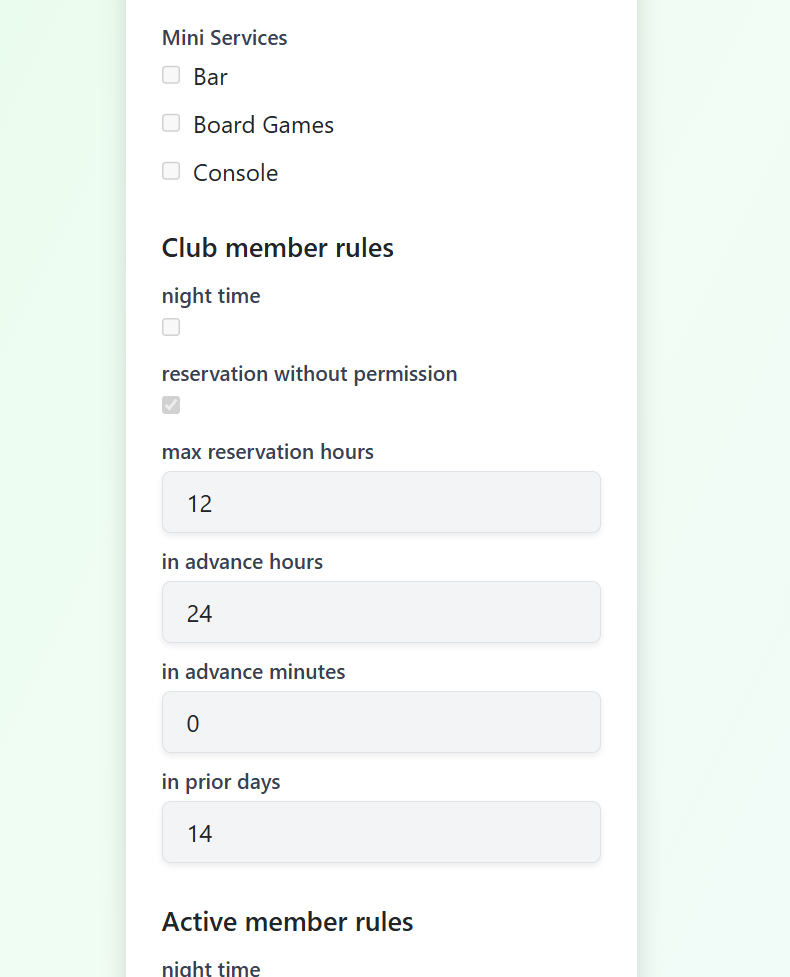
What you can check:
- Visuals: The color used in the public calendar.
- Collision Rules: Whether this calendar blocks others.
- Mini-services: Which add-ons are available for this track.
Edit Configuration
While viewing permissions are broad, editing is restricted to ensure stability.
- Permissions: Only the designated manager of the specific service can modify its calendars.
- Capabilities: Update participant limits, change colors, or reconfigure rule sets.
Soft Delete
Use Soft Delete to temporarily take a calendar offline without losing any historical data.
- New Bookings: Prevented immediately.
- Existing Data: Preserved for records.
- Restoration: Can be retrieved at any time.
Hard Delete
Permanently removes the calendar and all associated configuration.
Irreversible Action
Hard deletion is restricted to Superusers and should only be used for cleaning up incorrectly created entries. This action cannot be undone.
Permissions Summary
| Action | Manager | Superuser |
|---|---|---|
| View Rules | ||
| Edit Rules | ||
| Soft Delete | ||
| Hard Delete | ||
| Restore |
What’s Next?
Calendars work hand-in-hand with other configurations:
- Manage Mini-Services: Add equipment or extras to your tracks.
- Manage Services: Configure high-level room metadata.