Manager Dashboard
The Manager Dashboard provides a unified view of all reservation activity. It is designed to help you quickly identify requests that need your attention and keep track of confirmed bookings.
Dashboard Tabs
At the top of the page, you'll find navigation tabs that group reservations by their lifecycle state. These filters allow you to focus on specific management tasks.
| Tab | Purpose |
|---|---|
| My Events | Your personal reservations (same as the User Dashboard). |
| Not Approved | High priority! Requests waiting for your initial confirmation. |
| Update Requested | Existing reservations where users have proposed a time change. |
| Confirmed | Future view of all active, approved bookings. |
| Canceled | Records of all events that were declined or withdrawn. |
My Events
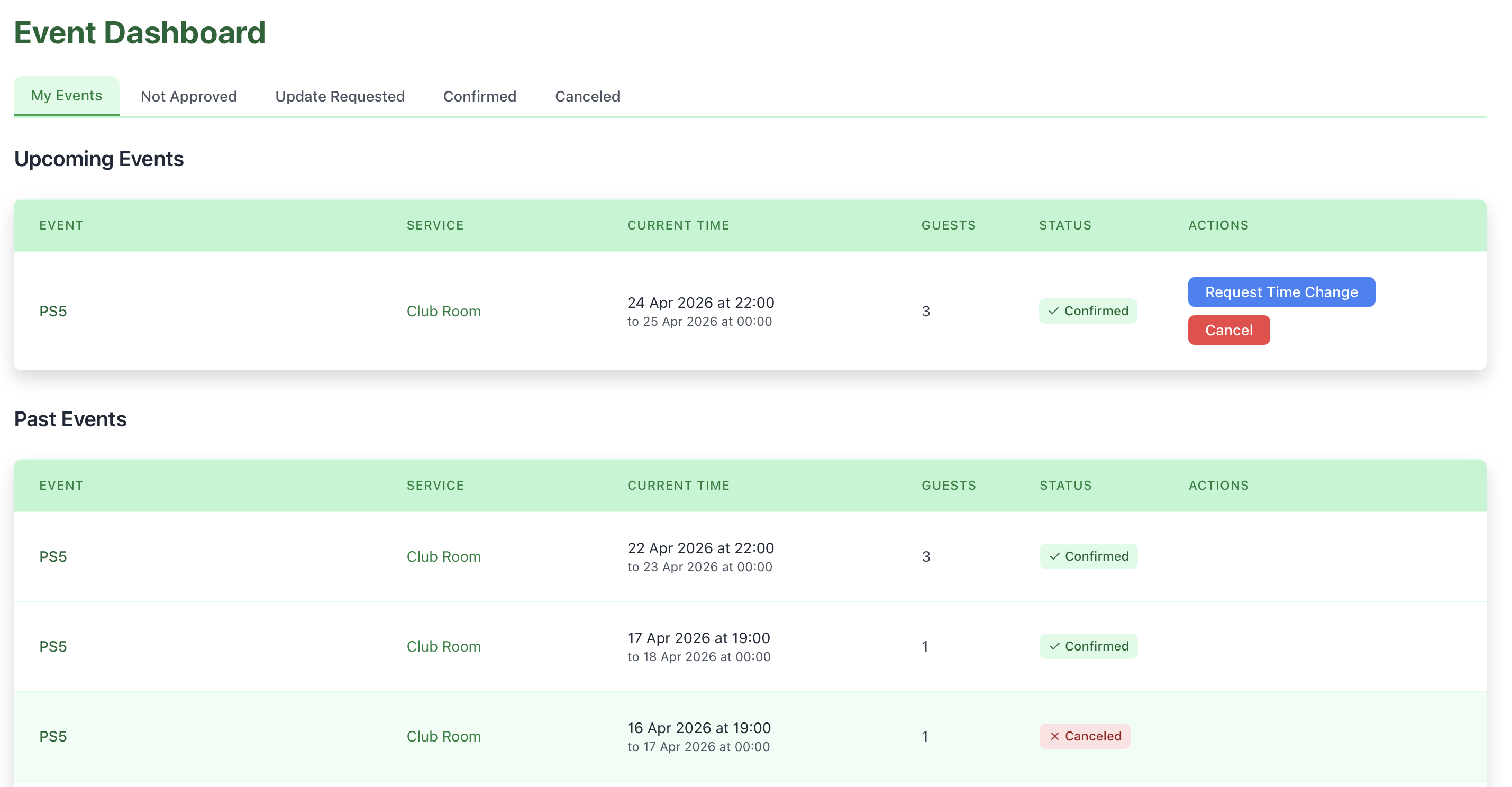
The My Events tab functions just like the standard user dashboard, showing your own personal activity.
Upcoming & Past Events
Track what you have booked personally. Each card provides a snapshot of the service, time, and status.
Status-Specific Tabs
Not Approved
This is your primary work queue. It contains reservations that cannot be confirmed automatically due to room rules (e.g., large groups or restricted hours).
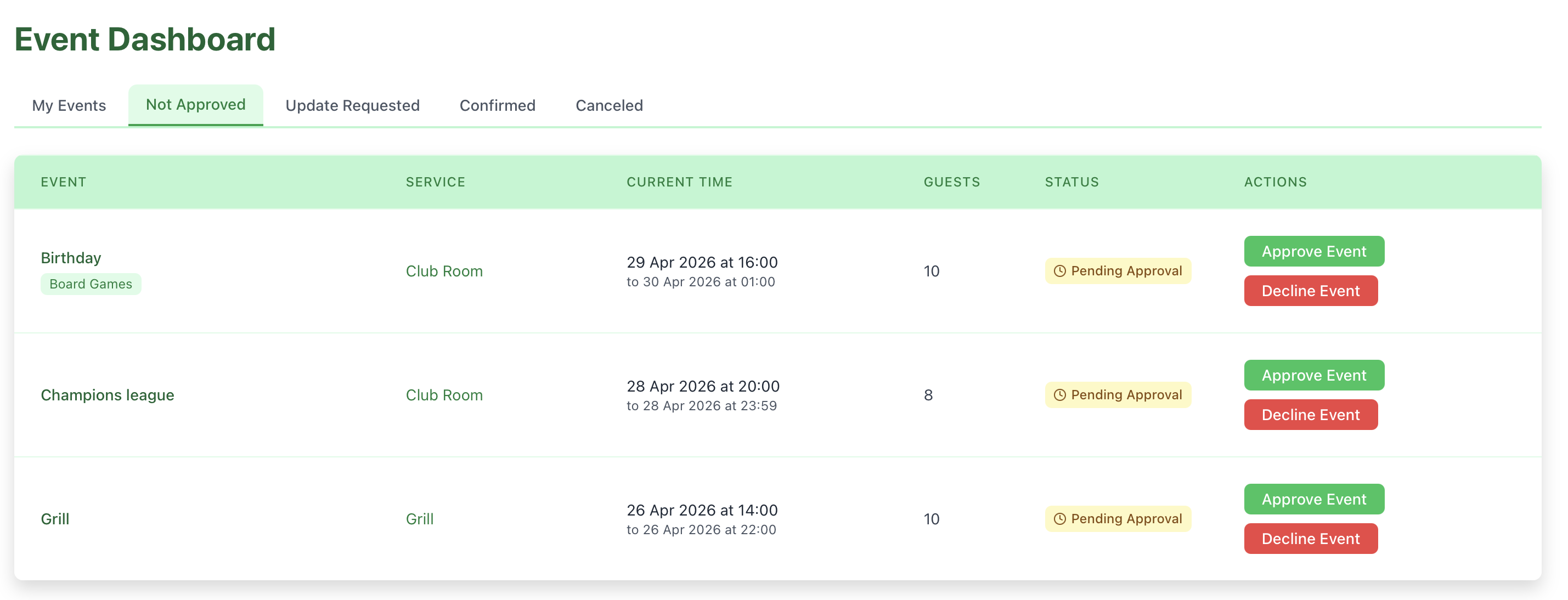
- Action Required: Managers should Approve or Decline these as soon as possible.
- Impact: No access or confirmation is granted to the user until you take action.
Update Requested
Shows reservations where a user has requested a modification.
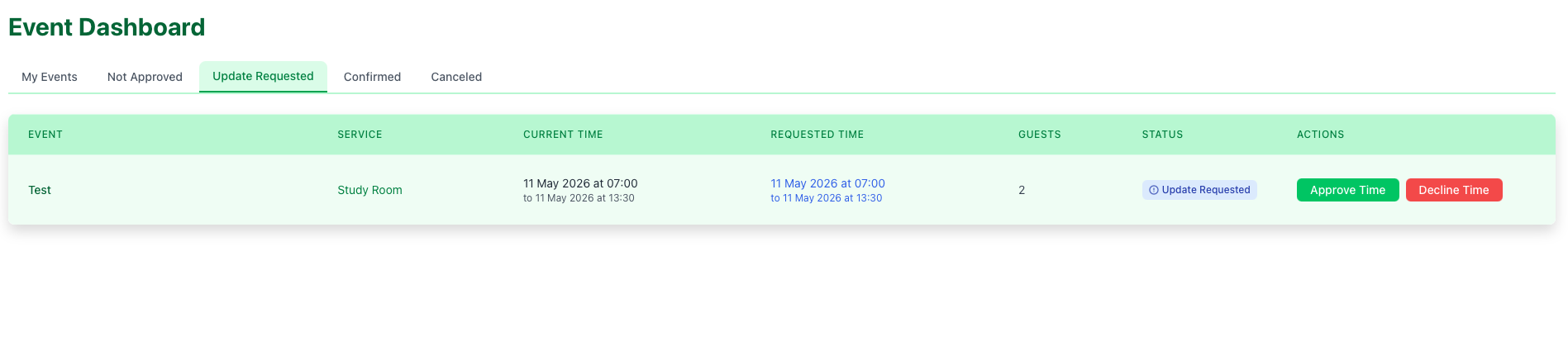
- Grace Period: The original reservation remains valid until you confirm the change.
- Action: You can Approve or Decline time changes.
Confirmed
A complete list of all successful bookings.
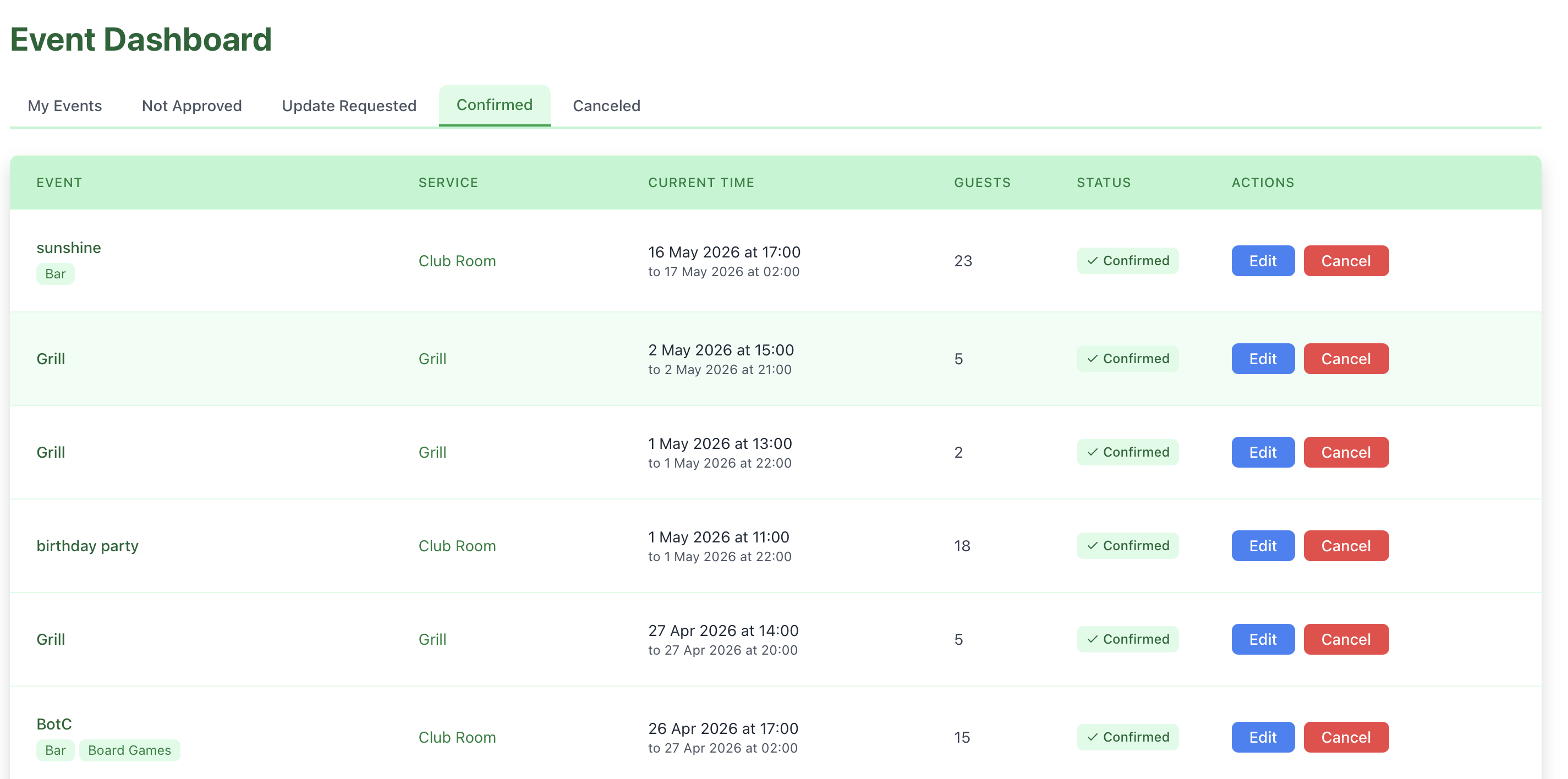
- Visibility: Essential for checking who is currently using a space.
- Management: Managers can still Edit or Cancel these if organizational needs change.
Role Capabilities
| Feature | Regular User | Manager |
|---|---|---|
| View own reservations | ||
| Request time changes | ||
| Review others' requests | ||
| Edit any reservation | ||
| Provide observations |
Observations
When you update a reservation, you can add a Manager Observation. This text is included in the automated email sent to the user, providing context for your decision.
What’s Next?
Ready to take action? Learn the details of the review process: