Reviewing Reservations
As a manager, your review process is vital for maintaining the balance of shared spaces. This guide explains how to handle various request types and how to communicate your decisions effectively.
Reviewing Pending Approvals
Reservations that require manual oversight appear in the Not Approved tab. Common reasons for this include:
- Night-time bookings
- Capacity overrides
- Restricted services
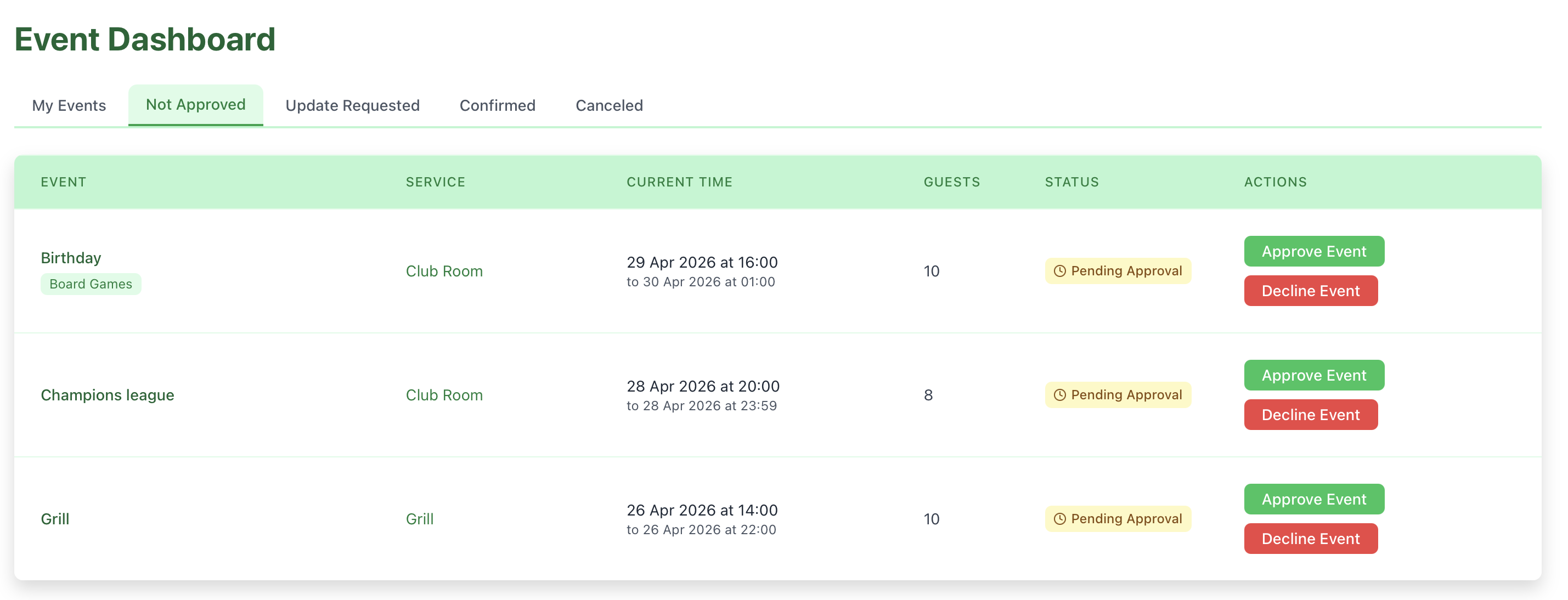
Approving an Event
- Locate the request in the Not Approved tab.
- Click the Approve Event button.
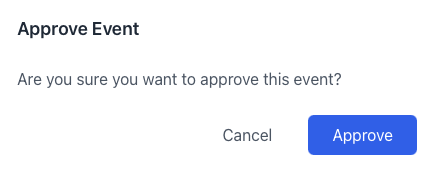
- Review the final details in the dialog and click Approve.
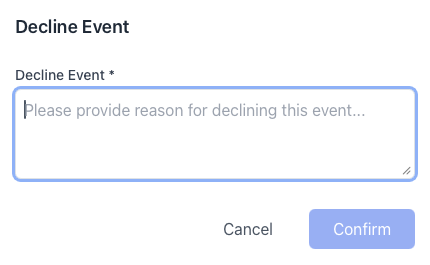
Declining an Event
- Click the Decline Event button.
- Crucial: Provide a reason in the Manager Observation field so the user knows why.
- Click Confirm.
Reviewing Time Changes
When users need to shift their booking, they propose a new slot which appears in Update Requested.
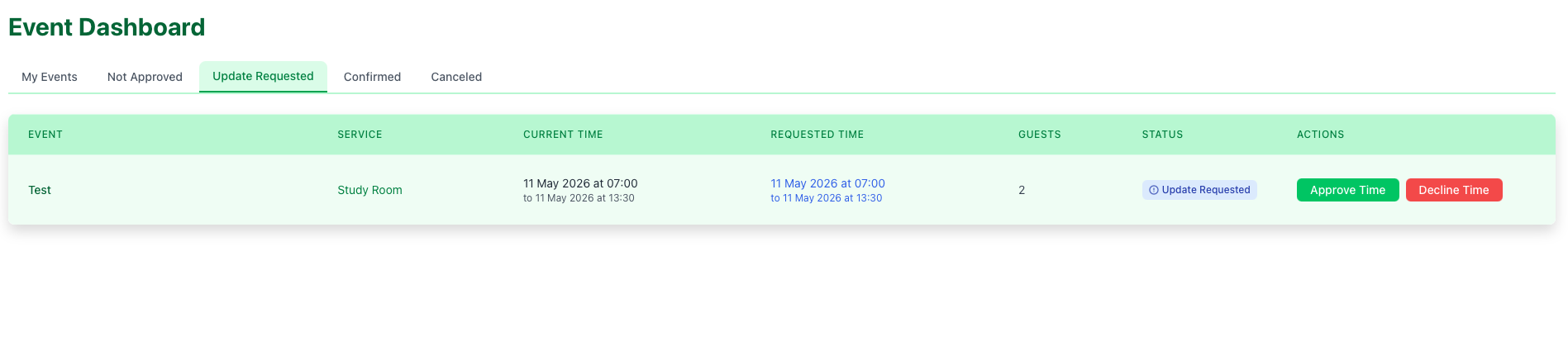
Handling the Proposal
- To Approve: Click Approve time to finalize the new time.
- To Decline: Click Decline time to keep the reservation at its original time.
Editing and Canceling
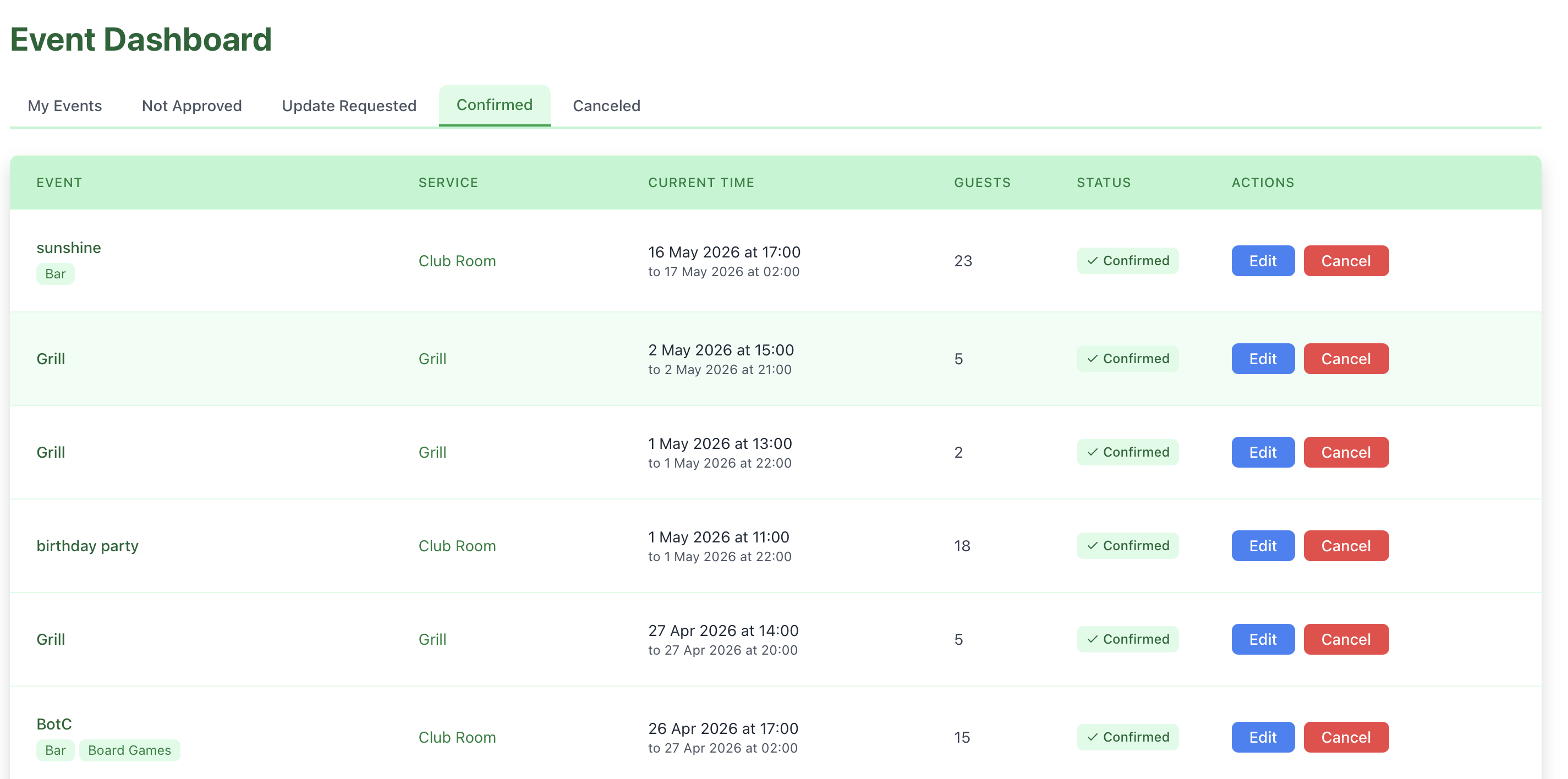
Beyond just approving/declining, you can perform direct maintenance on any active reservation.
Editing Details
Need to adjust the number of guests or add a note?
- Click the Edit Event.
- Update the fields and Save Changes.
Emergency Cancellation
If a space becomes unavailable (e.g., maintenance), you can cancel any booking.
- Click the Cancel Event.
- Confirm the action. An email will be sent to the user immediately.
Manager Observations
The Manager Observation field is your direct line to the user. Every time you take an action, the system sends an email.
Effective Observations
- Instructions: "The door code is 1234. Please ensure the lights are off."
- Explanations: "Declined because the room is reserved for a private event."
- Requests: "Please contact IT for the projector setup before you arrive."
- Email Content: Users see your observation clearly highlighted in their confirmation email.
- History: These notes are preserved in the system for future reference.